Listen to a Loud Computer Before You Open It
Use the timing and character of a new noise to separate a busy fan, a vibrating surface, and equipment that needs a closer look.
In this article
The computer starts to hum about twenty minutes into a call. At first you hear a steady rush of air. Then a thin note appears above it. Put one hand lightly on the desk and the thin note changes, even though the rush continues. If you had opened the case first, the second noise might have gone away by accident. The desk test tells you that at least part of the sound depends on how vibration reaches the room.
A loud computer can be doing ordinary work, coping with an obstructed vent, or reporting a physical fault through a new sound. The useful first move is to notice when it happens. You can often make a good distinction while the case is still closed and the computer is running in its intended position. Any internal cleaning or repair should follow the model's directions and be done with the equipment powered down as those directions require.
Make a record of the sound and its timing
Listen at your usual seat and note what you were doing when the noise began. Separate a broad rush from a single note, a rattling edge, or a repeating click. Record when it starts and how long it takes to stop after the activity ends. A fan that winds up and down with computing activity behaves differently from a buzz that starts as soon as a particular cable touches the desk. A short audio recording may help you compare repeat events or explain them to support. Label it with the conditions rather than guessing which part made it.
Give a new boot time to finish ordinary startup tasks if the device is otherwise working safely. Software updates, indexing, and synchronization can make an apparently idle computer busy. Once the system settles, repeat a familiar task such as opening a document, playing one local video, or joining a call. Do not create a heavy workload simply to make the sound worse. A modest task you can repeat under the same circumstances is more useful for diagnosis.
Consider whether the sound really comes from the computer. A monitor, dock, nearby external drive, or power adapter can be close enough to fool the ear. From a comfortable distance, listen with the computer and accessories in their regular positions. Shut down the computer normally if that is the next comparison you need, and see whether the sound remains with other equipment powered. Leave critical equipment connected, and use ordinary controls instead of repeatedly pulling plugs. A rattling external device has different consequences from a rattling case panel.
Observe the workload from the operating system
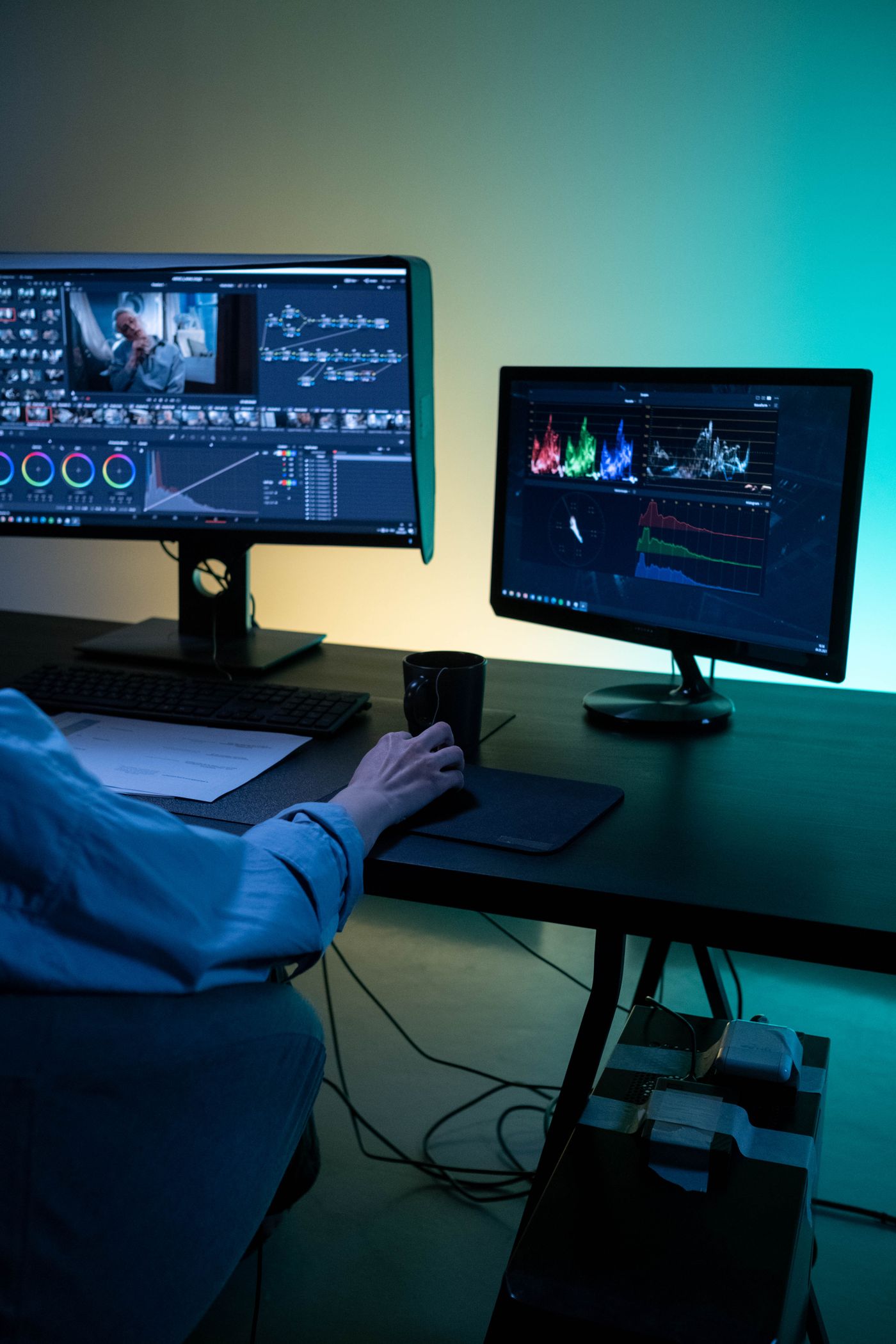
Use the system's activity view to see whether a process or class of work becomes busy around the time the fan rises. Look at total activity and the name of the process, then wait and observe whether both return to normal. An antivirus scan, synchronization, or graphics-intensive tab can make sense in context. Do not forcibly end a process because its name is unfamiliar. A legitimate task might be saving work or updating the system.
A quiet graph does not prove a hardware problem. An operating system view may show CPU use more prominently than graphics, and a laptop can behave differently while charging. Ambient temperature and where the machine sits also matter. If one ordinary task consistently raises the noise and stopping it lets the sound settle, the cooling system is responding to something that tracks the task. Test whether a specific setting or app changes the behavior, using options that preserve the quality of work you need. For a call, turn off an optional visual background once, then compare another call under similar conditions.
For a device with built-in diagnostics or temperature reporting, use the manufacturer's guidance to interpret them. Different models use different fan curves and sensors. Raw temperature figures are most useful when you know the component, the task, and the operating conditions measured. Avoid reaching conclusions from a screenshot of somebody else's computer running a different workload. The thresholds for concern are those applicable to your machine, and a system warning should be taken seriously.
Check the route air can actually take
Make sure the vents have space in the locations indicated for your model. A laptop used on upholstery can partly block its underside. A desktop pushed deep inside furniture may have little room behind it. An object on top of a case can cover a vent that was never visible from the chair. Put the equipment on a stable surface and use its intended orientation. Repeat the familiar activity after making the change and see whether the noise rises later, peaks lower, or remains much the same.
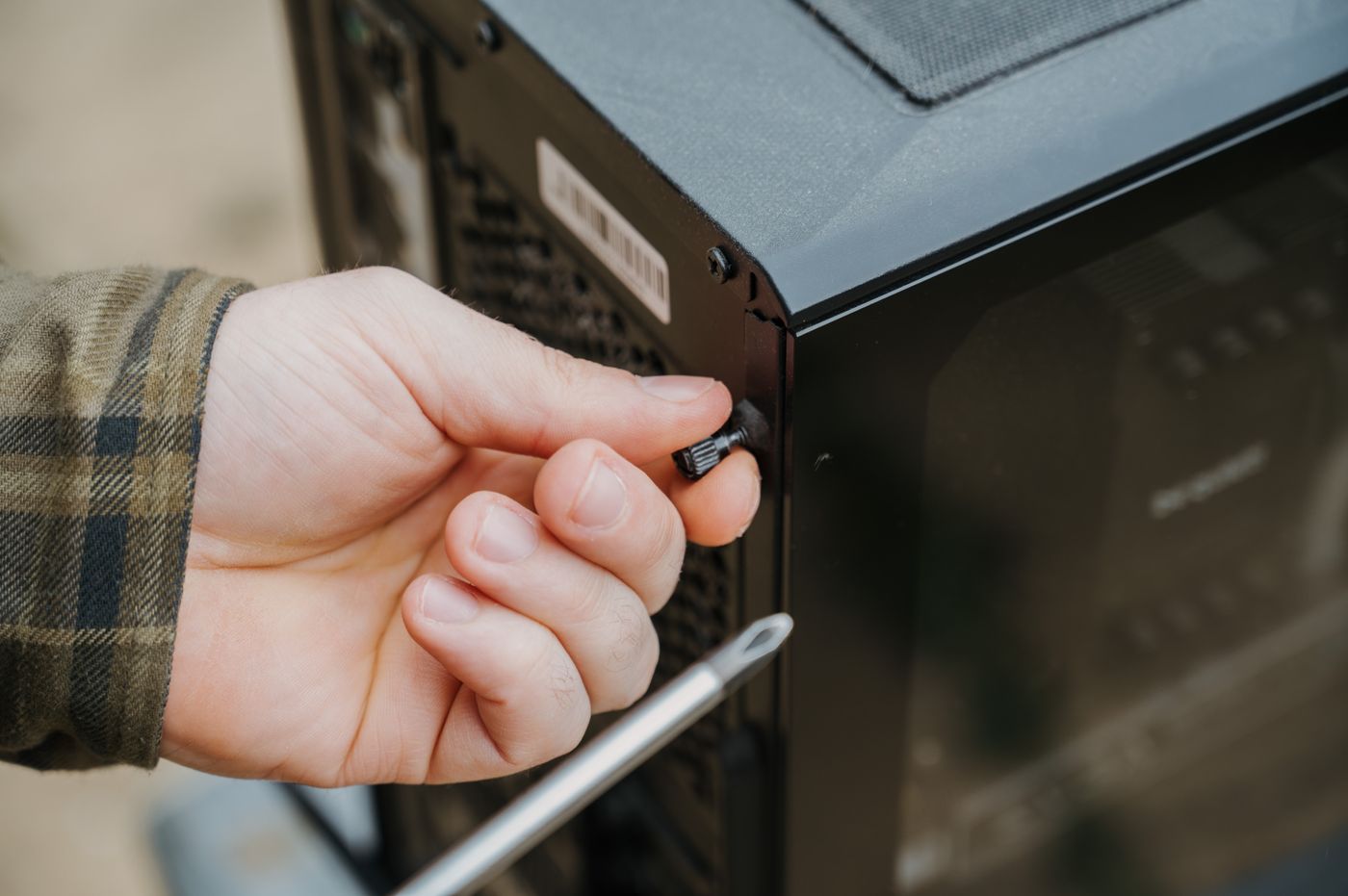
Look at accessible intake areas without opening the case. A visible layer of dust gives you evidence of a maintenance need. Follow the manufacturer's cleaning instructions. Power off and disconnect equipment as directed before cleaning, and avoid trying to stop spinning fans through a vent. If the machine is under warranty or you are unfamiliar with its service procedure, use the available support route for internal work. A sealed power supply is a component to leave closed.
Take the room into account. A warm afternoon may produce different fan behavior from a cool morning, even with the same software open. Direct sun can warm the case, and a desk near a heater may leave less useful cooling margin. Move an ordinary heat source or shade the equipment only if you can do so without covering vents. Record this change and leave the software state alone for the comparison. If several things change at once, the quietest outcome can still leave the cause uncertain.
Find out whether the furniture amplifies it
Listen for a tone that appears when the desk or cabinet resonates. Without blocking a vent or touching a moving part, pay attention to whether the sound changes as you rest a hand on a safe part of the furniture. Check whether a loose cable, accessory, or case edge is touching a thin panel. Rerouting a cable slightly can make more difference than any fan setting if it was transmitting vibration. Avoid placing a computer on an unstable stack or soft pad that interferes with cooling.
Try a second stable position if you have one available. Move the equipment only when safe to do so, following the device's guidance and letting external disks finish their work first. Use the same task afterward. A rattle that disappears on a rigid surface may have been due to the mount or furniture. A clicking or grinding sound that persists deserves attention even if it can be made less audible from the chair. The aim is to learn what makes the sound, rather than to hide a possible warning.
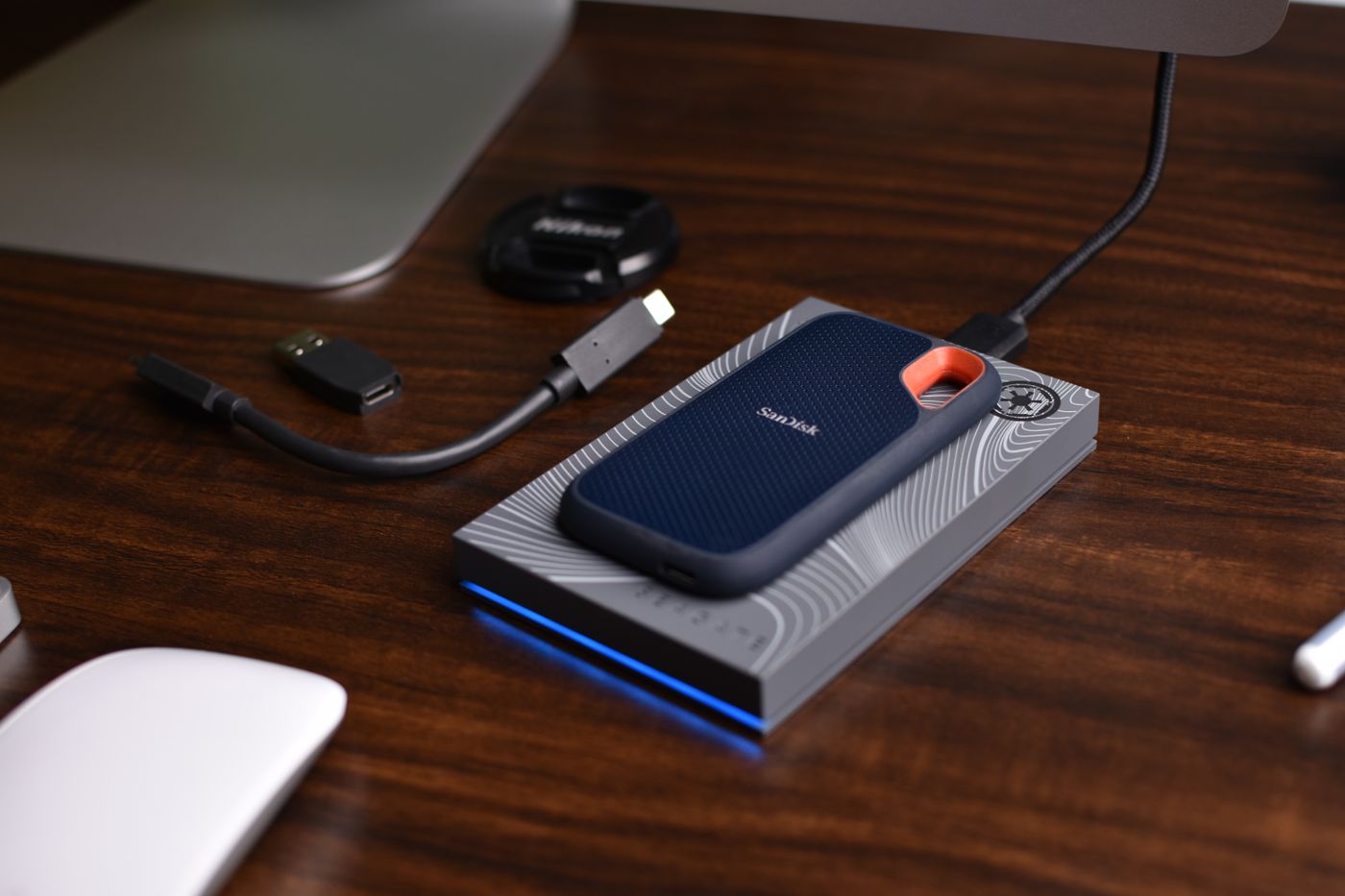
If an accessory changes the noise, test the simplest normal arrangement. A dock might sit in contact with a display stand. A portable drive could be making ordinary seek sounds more audible through the desk. Listen with the accessory on the surface where it is meant to operate, with enough slack in any cables. If a storage device develops a new repeated failure sound, struggles to open files, or reports errors, protect accessible important data and follow the device or service provider's support instructions. Repeatedly restarting it to reproduce a sound can be a poor use of your remaining opportunity to copy data.
Know when the comparison has answered enough
If the broad fan sound rises with an identifiable task, airflow is clear, and the device behaves normally afterward, the record may be enough to explain what you are hearing. You can then decide whether to change a practical setting, change where you use the device, or keep it as it is. If a new rough noise persists at idle or comes with shutdowns, serious heat warnings, a burning smell, or other signs of trouble, stop the test and use the appropriate service route. Put safety and the integrity of your work ahead of obtaining another recording.
When contacting support, send the evidence that distinguishes the cases: the model, when the sound starts, the activity that reproduces it, whether it changes at another normal position, and what the operating system reports. A short recording with an intelligible label helps more than a general report that the machine is loud. Mention what you already checked so the next person can avoid repeating the same comparisons.
The best outcome is often a specific sentence. “The fan rises during video export and returns to quiet afterward” is one sentence. “Moving the cable away from the shelf removes the extra buzz” is another. If the result is a case for repair, being able to describe it clearly is progress too. The point of listening with the case closed is that you get a better answer before deciding whether opening it is even relevant.
If you keep a record over several days, include one quiet example using the same application. The contrast can reveal a background job or a room change that you would miss by documenting only the loudest episode. It also gives a technician a useful control case.